Friday, June 26, 2015

Nice bash prompt for git

When checking out jfrazelle's Dockerfiles which are super fun I went down the rabbit hole with her dotfiles

I stole, and liked the setup for her bash prompt when working with GIT.

Chuck the following in your .bash_profile or fork a dotfiles repo.

prompt_git() {
 local s='';
 local branchName='';

 # Check if the current directory is in a Git repository.
 if [ $(git rev-parse --is-inside-work-tree &>/dev/null; echo "${?}") == '0' ]; then

  # check if the current directory is in .git before running git checks
  if [ "$(git rev-parse --is-inside-git-dir 2> /dev/null)" == 'false' ]; then

   # Ensure the index is up to date.
   git update-index --really-refresh -q &>/dev/null;

   # Check for uncommitted changes in the index.
   if ! $(git diff --quiet --ignore-submodules --cached); then
    s+='+';
   fi;

   # Check for unstaged changes.
   if ! $(git diff-files --quiet --ignore-submodules --); then
    s+='!';
   fi;

   # Check for untracked files.
   if [ -n "$(git ls-files --others --exclude-standard)" ]; then
    s+='?';
   fi;

   # Check for stashed files.
   if $(git rev-parse --verify refs/stash &>/dev/null); then
    s+='$';
   fi;

  fi;

  # Get the short symbolic ref.
  # If HEAD isn’t a symbolic ref, get the short SHA for the latest commit
  # Otherwise, just give up.
  branchName="$(git symbolic-ref --quiet --short HEAD 2> /dev/null || \
   git rev-parse --short HEAD 2> /dev/null || \
   echo '(unknown)')";

  [ -n "${s}" ] && s=" [${s}]";

  echo -e "${1}${branchName}${blue}${s}";
 else
  return;
 fi;
# Highlight the user name when logged in as root.
if [[ "${USER}" == "root" ]]; then
 userStyle="${red}";
else
 userStyle="${orange}";
fi;

# Highlight the hostname when connected via SSH.
if [[ "${SSH_TTY}" ]]; then
 hostStyle="${bold}${red}";
else
 hostStyle="${yellow}";
fi;

if tput setaf 1 &> /dev/null; then
 tput sgr0; # reset colors
 bold=$(tput bold);
 reset=$(tput sgr0);
 # Solarized colors, taken from http://git.io/solarized-colors.
 black=$(tput setaf 0);
 blue=$(tput setaf 33);
 cyan=$(tput setaf 37);
 green=$(tput setaf 64);
 orange=$(tput setaf 166);
 purple=$(tput setaf 125);
 red=$(tput setaf 124);
 violet=$(tput setaf 61);
 white=$(tput setaf 15);
 yellow=$(tput setaf 136);
else
 bold='';
 reset="\e[0m";
 black="\e[1;30m";
 lightblue="\e[94m";
 blue="\e[1;34m";
 cyan="\e[1;36m";
 green="\e[1;32m";
 orange="\e[1;33m";
 purple="\e[1;35m";
 red="\e[1;31m";
 violet="\e[1;35m";
 white="\e[1;37m";
 yellow="\e[1;33m";
 notdim="\e[22m"
 dim="\e[2m"
fi;


# Set the terminal title to the current working directory.
PS1="\[\033]0;\w\007\]";
PS1+="\[${bold}\]\n"; # newline
PS1+="\[${userStyle}\]\u"; # username
PS1+="\[${white}\] at ";
PS1+="\[${hostStyle}\]\h"; # host
PS1+="\[${white}\] in ";
PS1+="\[${green}\]\w"; # working directory
PS1+="\$(prompt_git \"${white} on ${violet}\")"; # Git repository details
PS1+="\n";
PS1+="\[${blue}\]\$ \[${reset}\]"; # `$` (and reset color)
export PS1;
}

Pretty useful.

Saturday, June 20, 2015

Forking pipelines

Yesterday, in preparation for Dockercon I posted a blog summary of some things we have been working on.

A piece buried within that post is the ability to fork a project and get its delivery pipeline along with the source. GitHub has made it trivial to share and fork source but deploying another persons application has never been simple. Docker goes a long way to making this better by providing consistent packaging mechanism and environment to run an application. Now via the use of a pipeline.yml file in the projects source repository we are able share the full delivery pipeline along with the source of an application.


I hope that this gets traction. Every software project has to standup a delivery pipeline. This always seems like more work than it should be and often feels like recreating the wheel. The ability to copy or clone existing pipelines is step towards allowing teams have robust continuous delivery pipelines with little cost, and for organizations to standardize on their delivery processes in a way that is executable rather than simple a list of requirements on some wiki. I can imagine communities emerging to share job types and pipeline definitions but to start with lets take a closer look at this first step.

The application

Lets assume you have a project with a pipeline (if you don’t see the post above, and go create one). For this exercise I took a BookClub application that Steve Atkin developed. This application is used to demonstrate how a java application can use the Globalization Pipeline service. It is a good application for my purposes because deployment involves binding the application to a number of services in IBM Bluemix, as well as passing credentials to the application for services not in Bluemix. In addition it is a Cloud Foundry application so also provides me with an excuse to Dockerize it and see how things work on the Container service.


Generating a pipeline.yml file

I cloned the project into a GitHub repository. This step was not necessary I wanted to organize a few examples in one place. The BookClub project had a pipeline. If your application does not you should go ahead and build one out manually that includes at least a Build and Deploy stage:
Next I generated a pipeline.yml file from the existing Pipeline by adding /yaml to the end of my exiting pipeline definition.
I checked this into my source repository as .bluemix/pipeline.yml.

The pipelne.yml file contained information specific to my organization and space. I edit the file and replaced

    target:
      url: https://api.ng.bluemix.net
      organization: rjminsha@us.ibm.com
      space: dev
with
    target:
      url: ${CF_TARGET_URL}
      organization: ${CF_ORGANIZATION}
      space: ${CF_SPACE}
Now when someone clones my pipeline, their information will be automatically substituted. I also replaced my application name with
     
   application: ${CF_APP}
Now when the project is copied using the 'Deploy to Bluemix Button', a unique project name will be generated and passed in as ${CF_APP}. In addition a unique route or url will be created for the new instance of the application and pipeline. These can be changed later if you desire. If you are working with a pipeline that uses Containers you will want to set the IMAGE_NAME, CONTAINER_NAME, and ROUTE_HOSTNAME to ${CF_APP}.

Dealing with services

Next I had to think about services. The BookClub application leverages the Globalization, Watson Machine Translation and IBM Insights for Twitter services in Bluemix. To deploy the application into a space you need those services added to the space and bound to the application. Binding a service to an application is how an application gets credentials for a service, and knows the correct endpoint.

Rather than ask the user to manually do this as a 'one time setup' I wanted to automate the creation of the service. If the services already existed I should bind the existing instances to my application, and if not I need to add service instances into the space. I checked a deployment utility into my repository that I would use to automate this.
... 
try:
    Logger = setupLogging()
    parser = argparse.ArgumentParser()
    parser.add_argument("--app")
    args=parser.parse_args()
    if args.app:
        appName=args.app
    else: 
        appName=DEFAULT_BRIDGEAPP_NAME

    createBoundAppForService(GLOBALIZATION_SERVICE, GLOBALIZATION_SERVICE_PLAN, GLOBALIZATION_SERVICE_NAME,appName)
    createBoundAppForService(MACHINE_TRANSLATION_SERVICE, MACHINE_TRANSLATION_PLAN, MACHINE_TRANSLATION_NAME,appName)
    createBoundAppForService(TWITTER_SERVICE, TWITTER_PLAN, TWITTER_NAME,appName)

    sys.exit(0)

except Exception, e:
    Logger.warning("Exception received", exc_info=e)
    sys.exit(1)
...
To make this available to the deployment jobs I also added it to my build stage in the pipeline.yml
      #!/bin/bash
      # build the application 
      mvn -B package
      #copy deploy utility
      cp setup_services.py ${ARCHIVE_DIR}
The last step was to deal with the API Keys needed to access non-bluemix services. The application uses APIs from http://developer.nytimes.com, http://idreambooks.com/api and http://www.alchemyapi.com. I didn't want to include private information like this in the build script or pipeline.yml so moved these to secure properties on the deploy stage and once again updated the pipeline.yml.
The secure properties can be accessed as environment variables in the deploy script, but will be hidden in output.


Adding Deploy to Bluemix

Finally I added a 'Deploy to Bluemix' button to my projects README.md. For information on this 'Deploy to Bluemix' refer to Philippe Mulet's excellent blog. It boils down to adding the following markdown to your README.md :
[![Deploy to Bluemix](https://bluemix.net/deploy/button.png)](https://bluemix.net/deploy?repository=https://github.com/Puquios/bookclub-foundry.git)
After doing so if someone clicks this button it will automatically clone the project, create an Bluemix DevOps Services Project, create a pipeline, generate a unique application name and route and kick off an initial deployment.


Give it a try

Head on over to the to the project, just deploy it!, or check out some of my other examples on my Puquios project. Then see some of the other examples, or share your own.

Friday, June 19, 2015

Recap of containers at Interconnect Feb 2015

I've been posting content in a few different locations, so thought I'd keep a few references on this Blog.  Back in February IBM held the first Interconnect conference.  Interconnect was huge ... three conferences rolled up into one.  Hybrid Cloud and the role containers play in portable workloads was a pretty consistent theme throughout the conference.  This of course made me happy. 

I was lucky enough to have the opportunity to present some sessions on containers and continuous delivery.   If you are interested you can get a copy of my slides on slideshare.  

Of the keynotes I thought that the talk Gennaro Cuomo and Heather Cox gave about Hybrid Cloud and Innovation was well done: https://www.youtube.com/watch?feature=player_detailpage&v=VjJ46gJYHoU#t=1893

Dan Berg and Jason McGee did a nice give and take on IBM DevOps Services for Containers:  https://www.youtube.com/watch?feature=player_detailpage&v=g7JZgAI3IDI#t=5438  

 The keynote video does not do a great job of showing the scenario, so here is an introduction to IBM DevOps Services for Containers at the time of Interconnect


All in all it was a great conference. We got really good feedback in terms of the direction that we are heading with the Delivery Pipeline, and the tight integration with services on Bluemix. With Dockercon coming up I'll take the opportunity to post more in next few days on my thoughts and progress working with containers and building out delivery pipelines.

Wednesday, October 8, 2014

Delivery pipeline for Docker containers

In a previous post I showed the usage of IBM Urbancode Deploy (UCD) to create a delivery pipeline for services packaged as Docker Containers. It was a positive experience. I liked docker as a packaging mechanism, I liked the concept of linking a test container to an application container as both a functional regression, as well as a health check and UCD did a good job of making the process of publishing to Docker registries and hosts repeatable and less error prone.

However, there were things that I did not like about the setup:
  • Triggering processes from one environment to another was a manual experience. I did not so much have a pipeline as I had a repeatable way to deploy to a set of environments.
  • It required users to be familiar with IBM Urbancode Deploy (UCD). While I think that UCD scores high on a usability rating it does take a few minutes to understand the concepts and relationships between Applications, Environments, Resources, Agents and Properties. I wanted something simpler that other team members would immediately understand.


Goals
When it comes down to it all I wanted was a tool that would allow me to check in a code change and then automatically trigger a pipeline. I wanted my pipeline to consist of the following stages that would be triggered by a checkin:
  1. Source repository. Check in code to GIT
  2. Private Docker Registry. Location where versioned containers could be found. Used for the source of deployments to staging, and also as a source for team members to get the latest version of the application for testing and debug.
  3. Automated regression. Deploy Application Container, deploy linked test container and run tests. Discard any resources.
  4. [ if Automated regression=passed] Staging. Deploy application container to a known staging environment. This can then be used for additional manual testing etc.

    Then additional deploy stages that would not be automatically triggered but could be requested.

  5. Production. An environment used for the hosting of the application.
  6. DockerHub. Public docker registry used to share the application with the world.


Demo


What was done
We setup a container service using Open Stack and some Docker drivers. Then configured a private docker registry behind nginx. We made some modifications with the help of the IBM DevOps Services team to support "Docker Builders" and "OpenStack Deployers", the scripted out each of the stages in our pipeline using shell.

Obviously, a lot of activity is happening around docker. I see simple multiphase delivery pipelines that provide a framework that we can continuous integrate, test, and deploy containers to docker cloud environments as a needed addition to the space.

Overall this was a lot of fun and I am encouraged by the simplicity of the JazzHub Pipeline. Check it out at http://hub.jazz.net/

Monday, September 22, 2014

Tip: Setting terminal tab name in Mac

Just a quick tip ...

My development environment tends to consist of a set of terminal windows and a text editor (currently Sublime Text).  Rather right clicking on each terminal tab to give it a name I wanted to set it from the command line.

That way I can open new tabs with Ctl-+, and then keep them organized. By placing the following script in /usr/local/bin

This script can be run to setup the title. For example:

For some other useful tips on using terminal such as setting the theme on the command line check out:

Monday, September 8, 2014

Short video on experiements with Rational and Docker

This is a short post, pretty much simply posting the video below.   I recently been experimenting with Docker and how it could be leveraged by Rational technology. The following video summarizes some of these experiments, most of which I have blogged about previously. 

Rational has a strong background in Agile development, and is well positioned to provide DevOps tooling. Docker, provides some really significant opportunities to bridge the gap between SaaS offerings and born on cloud style applications, and traditional on prem development.

As docker becomes more mainstream the focus of tooling is going to need to shift. Today deployment automation is a hot item and one that IBM Urbancode Deploy does very well. Moving forward though this provide will move into the background and tooling that manages the release and deploy processes for dockerized applications will be more and more important. We will need tooling that makes it simple to take a change to an application, package that change, test that change, tag the version according to quality and then release that change based on common release patterns (hotfix, canary, A/B, rolling upgrade).

These solutions will be needed both in the SaaS space and on-premise as well as needing to support hybrid scenarios. Docker will be key when enabling 'borderless cloud' scenarios both in terms of packaging applications in such a way that they can be run and scaled both on prem and in SaaS environments, but also in terms of providing powerful but simple DevOps tooling that can be leveraged in a SaaS environment, or deployed on prem. Leveraging docker containers to provide on-demand isolated environments is a nice way to scale out continuous integration processes, or to dynamically create environments for pre-integration testing or diagnostics.

While technologies to co-ordinate the deployment of an application as a set of distributed containers (fig, openstack, kubernetes, mesosphere...) are still evolving it is promising enough that we should consider this as a default packaging choice when distributing solutions moving forward.


Rational solutions as docker containers

Rational products as containers 

Audience

The intended audience for this post is anyone that has experience with Docker, and is interested in using Docker in combination with Rational Solutions.  The solutions described in this blog post are very much just a simple experiment and should not be considered to be a fully baked, production solution.  

Motivation

I have drunk the Kool-Aid and will deliberately over-simplify the pretty complex challenges associated with delivering content to customers.  Many of the costs associated with delivering on-premise solutions seem from there being too many deployment options.  This comes out in build times where native components are needed, complexities in installation and prereq checking, costs associated with test cross platform (huge) and cumbersome documentation that walks the line between too specific, or too general.

I'd like to live in a world where capabilities are packaged as Docker containers.  There is a lot to be understood and evolved to make this a reality and many emerging technologies that will help describe topologies made up of containers but the potential is certainly there today for this to radically simplify the production and consumption of packaged software. 

For this post, I simply wanted to build out a few basic containers made up of Rational Products essential to our on premise DevOps solutions. 

Short demo


Scenario: Adding agents to IBM Urbancode Deploy 

IBM Urbancode Deploy (UCD) is a great tool for developing a continuous delivery, or DevOps pipeline.  UCD takes an application centric view of the world, and for a given application you can create a set of environments and processes to deploy the application across them.  An environment in UCD is made up of a set of resources.  Each resource has a UCD Agent running on it.  Typically a resource is a running virtual machine with the agent installed.  While there are integrations in UCD to provision resources 'from a cloud' I wanted to see if we can we leverage Docker to make it simpler to quickly create resources and environments in UCD?


To do this I simply created a Docker Image with an IBM Urbancode Deploy Agent installed on it.  The container takes in environment information which tells it which UCD Server to connect to, and optionally the name of the agent to start.

This way I can start an agent which will automatically connect to my UCD Server and be named based on the containers hostname like so :

docker run -e "UCD_Hostname=myhostname" ucd-agent 
Or to give the agent a desired name:
docker run -e "UCD_Agent_Name=myagentname" -e "UCD_Hostname=myhostname" ucd-agent

A simple script allows me to quickly startup any number of agents.  This is really nice as it allows me to quickly create agents, resources, and environments which is really useful when creating and testing UCD automation.  Also it allows me to take machines in the lab, and to leverage docker to provide a set of isolated environments for various applications or purposes. 

Note, if you are using this container to deploy applications to you will need to expose the appropriate ports on the container for your application.  

Scenario: Standing up a DevOps Pipeline 

Dynamically creating UCD agents is great but lets take this a step further and look a running a DevOps pipeline in docker containers.  For this I created a single image for IBM Collaborative Lifecycle Management (CLM), an image for IBM Urbancode Deploy Server, and then the previous image for the UCD agents.  This is an interesting combination of products because typically we recommend Rational Team Concert (contained in CLM) for source control, planning and continuous integration and then UCD for continuous deployment.  Combined with some number of agents this gives us enough infrastructure to build out a continuous delivery pipeline.


 In this solution both the UCD agent, and the CLM containers take in the location of the UCD Server as a part of the environment.  This will automatically configure them to be connected to the UCD Server.  In addition to being able to pass in this information using the -e flag, they can also be run as linked containers which will automatically configure the connection information.

For example, to start these as linked containers exposing the default ports run:
echo "###################"
echo "starting ucd-server image"
echo "###################"
docker run -d -p 8080:8080 -p 8443:8443 --name=ucd-server ucd-server

echo "###################"
echo "Starting additional agent(s)"
echo "###################"
docker run -d --name=ucd-agent-1 -e "UCD_Agent_Name=docker-agent-remote-1" --link=ucd-server:ucdserver ucd-agent
docker run -d --name=ucd-agent-2 -e "UCD_Agent_Name=docker-agent-remote-2" --link=ucd-server:ucdserver ucd-agent

echo "###################"
echo "Starting CLM Server"
echo "###################"
docker run -d --link=ucd-server:ucdserver -p 9443:9443 -p 9080:9080 -e "UCD_Agent_NAME=docker-agent-clm-server" --name clm-server clm-simple

While the solution is very simple at this point and does not represent best practice topologies for CLM and CLM it shows quite a bit of promise. This solution has been very useful for quickly standing up isolated solutions for continuous delivery which is very useful when developing new applications/processes and for avoiding clutter on single large UCD Server deployments.   

Getting access to, and building the containers  

I have shared the source code for these images in a public IBM DevOps Services project called leanjazz-docker.

There are a number (unfortunately) of binary files that need to be downloaded as described in the README.md document.

Building the images: 
cd bin 
./build-all.sh  

Running the images:
cd bin 
./start-all.sh 
./show-info.sh  

At this point you can access the webpage for IBM Urbancode Deploy and view the connected agents, and also access the Jazz Team Server setup page to complete the setup of IBM Collaborative Lifecycle Management and Rational Team Concert.  If you used the scripts listed above the default ports will be mapped to the docker host ports. On my local machine I am using boot2docker and my docker host has an IP address of
$ boot2docker ip
The VM's Host only interface IP address is: 192.168.59.103
As such I can access the CLM console at https://192.168.59.103:9443/jts/ and the UCD Server console at http://192.168.59.103:8080
   
Adding additional 3 agents:
cd bin 
./add-agent.sh -a mynewagents -n 3 
docker ps | grep ucd-agent-docker 

Remaining work and issues 

Things are certainly not perfect.  I'll be tracking improvements to the containers  on leanjazz-docker  but here is a summary of some of the
  •  Images are quite large due to the size of the products but also due to a lack of work done optimizing the Dockerfile and build process
  • Containers for UCD and CLM run on tomcat and should be updated to include WebSphere Liberty profile
  • Containers for CLM have all application (CLM, QM, RM, JTS) installed on a single tomcat instance rather than being distributed across multiple instances. 
  • Databases are running within the container rather than being isolated on a volume, or in an external DBAS solution
  • Databases are running derby rather than IBM DB2 due to a requirement to start DB2 container in privileged mode 
  • Not currently published to DockerHub
  • No form of license acceptance built into the images

Wednesday, July 16, 2014

Running NetflixOSS and Cloud Fabric on Docker

Previously I had setup a docker to run IBM Cloud Services Fabric powered in part by NetflixOSS prototype.  Andrew has a lot of great posts on these topics.

It is time however, for me to refresh my environment.  I'll use the public git repository that was open sourced earlier this year.  In this post I'll simply capture my experiences. All of this is well documented in Andrew's youtube video, the git repository readme and on Andrews blog.

Conclusions 

This was really easy based on instructions on the Git repository.  Total time was approximately 4 hours but the majority of that was waiting for the docker images to build.  It would be good to restructure the build layers so that this is faster when making changes, and would also be good to publish images on dockerHub.

While the times to detect and recover were much longer than expected working within this environment is a lot of fun, and it is very interesting to be able to test reasonably complex scenarios on distributed environments.  Very valuable as a producer of micro-services package within docker containers.

I look forward to scenarios that allow me to test locally like this, then pass an application container to a pipeline that tests and deploys new versions of the application into a production environment that supports these Cloud Fabric and NetflixOSS services. 

Setup

Review topology

Setup docker virtual machine 

Setup a clean docker environment so that I can compare this environment to my previous.  To do this I'll simply use vagrant to stand up a virtual machine.
$ vagrant up
$ vagrant halt
Updated my script to forward all the ports docker containers like to use to the virtual machine. In Virtual Box I changed the settings to update the memory to 4096, and 4 cores. Then re-started the virtual machine.
$ vagrant ssh

Pull git repository and build containers 

The GIT repository lives here. On my docker virtual machine:
$ mkdir acme-air
$ git clone https://github.com/EmergingTechnologyInstitute/acmeair-netflixoss-dockerlocal.git 
$ cd acmeair-netflixoss-dockerlocal/bin
Review the env.sh to make sure it mapped to my environment
Update the id_rsa.pub and id_rsa with my SSH keys
$ ./acceptlicenses.sh
$ ./buildimages.sh
This took a long time ... like a couple of hours.

Starting the containers 

There is a useful script for starting the containers which only took about a minute to run.
$ ./startminimum.sh
 

Basic testing  

Open up two terminals to the docker virtual machine, in one monitor the instances and the other to test.
Monitor Health Manager:
$ ./showhmlog.sh
Welcome to Ubuntu 14.04 LTS (GNU/Linux 3.13.0-27-generic x86_64)
D, [2014-07-17T15:56:11.156272 #16] DEBUG -- : HM ---> target=1, actual=1, stalled=0 asg=acmeair_webapp account=user01
D, [2014-07-17T15:56:11.157862 #16] DEBUG -- : HM ---> target=1, actual=1, stalled=0 asg=acmeair_auth_service account=user01

Execute some basic validation tests
vagrant@vagrant-ubuntu-trusty-64:~/acme-air/acmeair-netflixoss-dockerlocal/bin$ ./testauth.sh 
200 HTTP://172.17.0.30/rest/api/authtoken/byuserid/uid0@email.com
id=71600f08-c220-44d2-9004-51ce1d5ffa8a
200 HTTP://172.17.0.30/rest/api/authtoken/71600f08-c220-44d2-9004-51ce1d5ffa8a
vagrant@vagrant-ubuntu-trusty-64:~/acme-air/acmeair-netflixoss-dockerlocal/bin$ ./testwebapp.sh 
200 HTTP://172.17.0.31/rest/api/login
200 HTTP://172.17.0.31/rest/api/customer/byid/uid0@email.com
200 HTTP://172.17.0.31/rest/api/flights/queryflights
200 HTTP://172.17.0.31/rest/api/login/logout?login=uid0@email.com
200 HTTP://172.17.0.31/rest/api/login
By default this is testing directly against a single instance in the autoscaling group.
vagrant@vagrant-ubuntu-trusty-64:~/acme-air/acmeair-netflixoss-dockerlocal/bin$ ./showasginstances.sh 
Pseudo-terminal will not be allocated because stdin is not a terminal.
Welcome to Ubuntu 14.04 LTS (GNU/Linux 3.13.0-27-generic x86_64)
"logging in @http://localhost:56785/asgcc/ user=user01 key=***** ..."
"OK"
"listing instances for autoscaling group: acmeair_auth_service"
INSTANCE_ID  | STATUS  | AVAILABILITY_ZONE | PRIVATE_IP_ADDRESS | HOSTNAME                       
-------------|---------|-------------------|--------------------|--------------------------------
9625eaaa3028 | RUNNING | docker-local-1a   | 172.17.0.30        | acmeair-auth-service-731744efdd

"listing instances for autoscaling group: acmeair_webapp"
INSTANCE_ID  | STATUS  | AVAILABILITY_ZONE | PRIVATE_IP_ADDRESS | HOSTNAME                 
-------------|---------|-------------------|--------------------|--------------------------
e57c9d74c97c | RUNNING | docker-local-1a   | 172.17.0.31        | acmeair-webapp-9023aa3b81
It is also worth noting that the scripts are SSH'ing directly into the running instances of the containers to get information. So if you are using boot2docker then you need to be running them directly from the boot2docker virtual machine not on the local mac command line.

Next lets test the web application hitting the zuul edge service to make sure that it has gotten the location of the web application from eureka.
Find the ip address of the zuul edge service, and then pass that into the basic test script
vagrant@vagrant-ubuntu-trusty-64:~/acme-air/acmeair-netflixoss-dockerlocal/bin$ ./showipaddrs.sh 
172.17.0.19 skydns
172.17.0.20 skydock
172.17.0.22 cassandra1
172.17.0.25 eureka
172.17.0.26 zuul
172.17.0.27 microscaler
172.17.0.28 microscaler-agent
172.17.0.29 asgard
172.17.0.30 acmeair-auth-service-731744efdd
172.17.0.31 acmeair-webapp-9023aa3b81
vagrant@vagrant-ubuntu-trusty-64:~/acme-air/acmeair-netflixoss-dockerlocal/bin$ ./testwebapp.sh 172.17.0.26
200 HTTP://172.17.0.26/rest/api/login
200 HTTP://172.17.0.26/rest/api/customer/byid/uid0@email.com
200 HTTP://172.17.0.26/rest/api/flights/queryflights
200 HTTP://172.17.0.26/rest/api/login/logout?login=uid0@email.com

Experimenting with the environment 

Testing the health manager and service lookup

Next lets test what happens with auto-scaling groups, failover and recovery. Currently we just have a single instance in the auto-scaling group and we will experiment with more later, working with a single instance should make cause and effect pretty straight forward. To do this we can start up the containers with autoscaling groups, run some tests continuously, and then kill the application containers. We should expect that the health manager will detect that a container is no longer responding, so will start another instance of the container.

I'll have 4 windows open
  1. window running continuous tests directly against instance
  2. window running continuous tests against zuul
  3. window tailing on the health manager logs
  4. command prompt from which I can monitor and kill containers
I copied testwebapp.sh to conttestwebapp.sh and made a quick adjustment so that it will simply keep on running
#!/bin/sh

. ./env.sh

webapp_addr=$1

if [ -z "$webapp_addr" ]; then
  webapp_addr=$($docker_cmd ps | grep 'acmeair/webapp' | head -n 1 | cut -d' ' -f1 | xargs $docker_cmd inspect --format '{{.NetworkSettings.IPAddress}}')
fi
while true; do
        sleep 2
        for i in `seq 0 1 10`
        do
         curl -sL -w "%{http_code} %{url_effective}\\n" -o /dev/null -c cookie.txt --data "login=uid0@email.com&password=password" $webapp_addr/rest/api/login
         curl -sL -w "%{http_code} %{url_effective}\\n" -o /dev/null -b cookie.txt $webapp_addr/rest/api/customer/byid/uid0@email.com
         curl -sL -w "%{http_code} %{url_effective}\\n" -o /dev/null -b cookie.txt --data "fromAirport=CDG&toAirport=JFK&fromDate=2014/03/31&returnDate=2014/03/31&oneWay=false" $webapp_addr/rest/api/flights/queryflights
         curl -sL -w "%{http_code} %{url_effective}\\n" -o /dev/null -b cookie.txt $webapp_addr/rest/api/login/logout?login=uid0@email.com
        done
done

Window1: get IP address of web-app instance, and test continuously
$ ./showipaddrs.sh | grep zuul 
172.17.0.19 skydns
172.17.0.20 skydock
172.17.0.22 cassandra1
172.17.0.25 eureka
172.17.0.26 zuul
172.17.0.27 microscaler
172.17.0.28 microscaler-agent
172.17.0.29 asgard
172.17.0.30 acmeair-auth-service-731744efdd
172.17.0.33 acmeair-webapp-dec27996fa
$ ./conttestwebapp.sh 172.17.0.33
200 HTTP://172.17.0.33/rest/api/login

Window2: test continuously against zuul
$ ./showipaddrs.sh | grep zuul 
172.17.0.26 zuul
$ ./conttestwebapp.sh 172.17.0.26
200 HTTP://172.17.0.33/rest/api/login

Window3: monitor health manager
$ ./showhmlog.sh 
Pseudo-terminal will not be allocated because stdin is not a terminal.
Welcome to Ubuntu 14.04 LTS (GNU/Linux 3.13.0-27-generic x86_64)

 * Documentation:  https://help.ubuntu.com/
stdin: is not a tty
D, [2014-07-17T16:26:54.349445 #16] DEBUG -- : HM ---> target=1, actual=1, stalled=0 asg=acmeair_webapp account=user01
D, [2014-07-17T16:26:54.351620 #16] DEBUG -- : HM ---> target=1, actual=1, stalled=0 asg=acmeair_auth_service account=user01
D, [2014-07-17T16:27:14.361714 #16] DEBUG -- : HM ---> target=1, actual=1, stalled=0 asg=acmeair_webapp account=user01

Window3: kill something
$ docker ps | grep webapp 
df371d9a62e9        acmeair/webapp-liberty:latest         /usr/bin/supervisord   7 minutes ago       Up 7 minutes        0.0.0.0:49180->22/tcp, 0.0.0.0:49181->9080/tcp, 0.0.0.0:49182->9443/tcp   acmeair-webapp-dec27996fa         

$ docker stop df371d9a62e9 
df371d9a62e9

$ docker rm df371d9a62e9
df371d9a62e9
Now we can see the instance become stale in the health manager logs, the tests failing and a new instance starting.


After a few seconds the instance will be up and running and the tests will begin to work. The direct tests to the web application will need to be re-directed to the new instance as the IP address has changed, while the tests against zuul will automatically pick up the new instance and begin to pass again. 


Pretty neat.  The netflixOSS libraries picked up that the instance was no longer and started another one using the micro-scaler for docker.

Default detection and recover times

Killing webapp 

  • ~15 seconds for health manager to detect  stale instance
  • ~29 seconds for health manager to successfully started a new instance 
  • ~30 seconds for direct tests to pass 
  • ~2 minutes 10 seconds for zuul tests to pass indicating it has a new reference to the new instance of the web application
Killing authentication service 
Very similar test.  In this case I killed the authentication service, ran tests against the authentication service directly, while at the same time running webapp tests against zuul.  As expected I see a new container started, and the webapplication tests (dependent upon auth) fail for some period of time until the webapp detects a new instance of the authentication service is available.
  • ~15 seconds for HM to detect the stale instance 
  • ~30 seconds for the HM to start a new auth instance 
  • ~55 seconds until the new auth service is successfully responding to tests 
  • ~1 minute 43 seconds for the web application (via zuul) to pass indicating that it had successfully picked up a new reference to the authentication service via eureka

Working with auto-scaling groups via asgard 

In this post I won't explore too many scenarios, but would like to make sure that the environment is setup and functioning correctly. Asgard provides the interface to manage auto-scaling groups (which are scaled using the micro-scaler). So lets have a look at the asgard console and play around.
Find the IP address of asgard, and quickly test that I can access it
$ ./showipaddrs.sh | grep asgard 
172.17.0.12 asgard

$ curl -sL -w "%{http_code}" -o /dev/null http://172.17.0.12
200
I can now open up a web browser and navigate Asgard to see my auto-scaling groups. However, I do not appear to be able to modify the existing auto-scaling groups currently in the web-ui.


Working with auto-scaling groups via command line

Because I am unable to update the auto-scaling groups via asgard currently, I'll steal from the command line scripts and configure it directly on the micro-scaler. I created a simple script which will login to the micro-scaler via SSH and update the min, max and desired size of the auto-scaling groups.
 
$ ./updateasg.sh -m 3 -x 6 -d 4 -a acmeair_auth_service 
setting MIN=3, MAX=6 and DESIRED=4
{"name"=>"acmeair_auth_service", "min_size"=>3, "max_size"=>6, "desired_capacity"=>4}
"updating autoscaling group {\"name\"=>\"acmeair_auth_service\", \"min_size\"=>3, \"max_size\"=>6, \"desired_capacity\"=>4} ..."
"OK"


$ ./updateasg.sh -m 1 -x 4 -d 2 
setting MIN=1, MAX=4 and DESIRED=2
{"name"=>"acmeair_webapp", "min_size"=>1, "max_size"=>4, "desired_capacity"=>2}
"updating autoscaling group {\"name\"=>\"acmeair_webapp\", \"min_size\"=>1, \"max_size\"=>4, \"desired_capacity\"=>2} ..."
"OK"


$ ./showasginstances.sh 
"listing instances for autoscaling group: acmeair_auth_service"
INSTANCE_ID  | STATUS  | AVAILABILITY_ZONE | PRIVATE_IP_ADDRESS | HOSTNAME                       
-------------|---------|-------------------|--------------------|--------------------------------
4fc7096f16db | RUNNING | docker-local-1a   | 172.17.0.13        | acmeair-auth-service-68810614db
07ec4db6ee74 | RUNNING | docker-local-1a   | 172.17.0.17        | acmeair-auth-service-c181cfb84d
df72cc31d9a7 | RUNNING | docker-local-1a   | 172.17.0.21        | acmeair-auth-service-783abcf2d8
cf7683e75d22 | RUNNING | docker-local-1a   | 172.17.0.22        | acmeair-auth-service-1575c11f44

"listing instances for autoscaling group: acmeair_webapp"
INSTANCE_ID  | STATUS   | AVAILABILITY_ZONE | PRIVATE_IP_ADDRESS | HOSTNAME                 
-------------|----------|-------------------|--------------------|--------------------------
3c9adb9e1c90 | RUNNING  | docker-local-1a   | 172.17.0.19        | acmeair-webapp-60b3d9c19c
ab3bbbb8dc58 | STOPPING | docker-local-1a   | 172.17.0.18        | acmeair-webapp-f4eb98e58b
425fd6f254c2 | STOPPING | docker-local-1a   | 172.17.0.16        | acmeair-webapp-3c41308a4c
7a86ce9cb5cb | RUNNING  | docker-local-1a   | 172.17.0.20        | acmeair-webapp-5e66cb688e

which is now reflected in the asgard console

Various Problems 

Including as perhaps this information is useful to help other debug and use the containers

Problem: accessing asgard from the local machine

Typically to access docker containers I leverage port forwarding. In virtualBox I setup my network to forward all ports that Docker maps onto the virtual machine, and then I have my docker daemon maps ports using the -P or -p options when running the container. This way I can access the exposed ports in my container from outside of the docker host. However, since the the docker containers do not expose ports I'll follow the instructions on setting up a host only network posted by Andrew. This allows me to directly access the IP addresses or any running containers from my local machine. This is pretty nice and behaves as a small private IaaS cloud. It is however, not clear to me why not simply expose certain ports in the docker containers and then leverage port forwarding out of the box. I'll explore this more later.

Problem (open): confusing ports on webapp

It  is not clear to me why the webapp container exposes port 9080 when the liberty server is listening on port 80.
 docker ps 
CONTAINER ID        IMAGE                                 COMMAND                CREATED             STATUS              PORTS                                                                     NAMES
e9e9031f0632        acmeair/webapp-liberty:latest         /usr/bin/supervisord   11 minutes ago      Up 11 minutes       0.0.0.0:49168->22/tcp, 0.0.0.0:49169->9080/tcp, 0.0.0.0:49170->9443/tcp   acmeair-webapp-5b9d28bae2
It is also not clear to me why the docker containers are not exposing ports. For example, the webapp-liberty container should perhaps have 'EXPOSE 80' in it's Dockerfile.

Problem: Containers would not start after docker vm was shut down

After rebooting my machine no containers were running.  Starting a new set of containers failed as the names were all reading taken by the now stopped containers.  I could start each of the containers again but it was simpler to simply remove then and start again.  To remove all my stopped containers:
$ docker rm $(docker ps -a -q)
Now I can run
$ ./startminimum.sh

Problem: No asgs running and incorrect network configuration for my docker host 

This happened because I did not read anything or watch the video fully, if I had I would have saved myself time (classic). I'm including this in the post as the debug process may itself be interesting to new users of this environment.

After building and starting the containers I would expect to have a set of containers running for the netflixoss services, and to have two auto-scaling groups running (one for the webapp, and one for the authentication service. To validate this I'll look at the auto scaling groups
vagrant@vagrant-ubuntu-trusty-64:~/acme-air/acmeair-netflixoss-dockerlocal/bin$ ./showasgs.sh 
Pseudo-terminal will not be allocated because stdin is not a terminal.
Welcome to Ubuntu 14.04 LTS (GNU/Linux 3.13.0-27-generic x86_64)

 * Documentation:  https://help.ubuntu.com/
stdin: is not a tty
"logging in @http://localhost:56785/asgcc/ user=user01 key=***** ..."
"OK"
NAME                 | STATE   | AVAILABILITY_ZONES | URL | MIN_SIZE | MAX_SIZE | DESIRED_CAPACITY | LAUNCH_CONFIGURATION
---------------------|---------|--------------------|-----|----------|----------|------------------|---------------------
acmeair_webapp       | started | ["docker-local-... | N/A | 1        | 4        | 1                | acmeair_webapp      
acmeair_auth_service | started | ["docker-local-... | N/A | 1        | 4        | 1                | acmeair_auth_service
which did not seem to match the running containers
vagrant@vagrant-ubuntu-trusty-64:~/acme-air/acmeair-netflixoss-dockerlocal/bin$ docker ps 
CONTAINER ID        IMAGE                              COMMAND                CREATED             STATUS              PORTS                                                NAMES
a45cb9300bc0        acmeair/asgard:latest              /usr/bin/supervisord   8 minutes ago       Up 8 minutes        22/tcp, 80/tcp, 8009/tcp                             asgard              
f9844069ffa0        acmeair/microscaler-agent:latest   /usr/bin/supervisord   8 minutes ago       Up 8 minutes        22/tcp                                               microscaler-agent   
41cc3ce7c103        acmeair/microscaler:latest         /usr/bin/supervisord   9 minutes ago       Up 9 minutes        22/tcp                                               microscaler         
a9bb6e8b86de        acmeair/zuul:latest                /usr/bin/supervisord   9 minutes ago       Up 9 minutes        22/tcp, 80/tcp, 8009/tcp                             zuul                
1b43bfb7aa49        acmeair/eureka:latest              /usr/bin/supervisord   9 minutes ago       Up 9 minutes        22/tcp, 80/tcp, 8009/tcp                             eureka              
2a2b68aeae1a        acmeair/cassandra:latest           /usr/bin/supervisord   10 minutes ago      Up 10 minutes       22/tcp                                               cassandra1          
276039ec2255        crosbymichael/skydock:latest       /go/bin/skydock -ttl   10 minutes ago      Up 10 minutes                                                            skydock             
c26630a74fa5        crosbymichael/skydns:latest        skydns -http 0.0.0.0   10 minutes ago      Up 10 minutes       172.17.42.1:53->53/udp, 172.17.42.1:8080->8080/tcp   skydns              
so I'll check the health manager to see if the asgs were started as expected
vagrant@vagrant-ubuntu-trusty-64:~/acme-air/acmeair-netflixoss-dockerlocal/bin$ ./showhmlog.sh 
Pseudo-terminal will not be allocated because stdin is not a terminal.
Welcome to Ubuntu 14.04 LTS (GNU/Linux 3.13.0-27-generic x86_64)

 * Documentation:  https://help.ubuntu.com/
stdin: is not a tty
D, [2014-07-16T19:25:42.138373 #14] DEBUG -- : HM ---> asg=acmeair_webapp account=user01 is in COOLDOWN state! no action taken until cooldown expires.
D, [2014-07-16T19:25:42.140839 #14] DEBUG -- : HM ---> target=1, actual=0, stalled=0 asg=acmeair_auth_service account=user01
D, [2014-07-16T19:25:42.141929 #14] DEBUG -- : HM ---> scale-up asg=acmeair_auth_service account=user01
D, [2014-07-16T19:25:42.146276 #14] DEBUG -- : HM ---> starting 1 instances for acmeair_auth_service account=user01
D, [2014-07-16T19:25:42.148137 #14] DEBUG -- : launching instance for asg=acmeair_auth_service and user=user01 with az=docker-local-1a
D, [2014-07-16T19:25:42.151127 #14] DEBUG -- : {"name"=>"acmeair_auth_service", "availability_zones"=>["docker-local-1a"], "launch_configuration"=>"acmeair_auth_service", "min_size"=>1, "max_size"=>4, "desired_capacity"=>1, "scale_out_cooldown"=>300, "scale_in_cooldown"=>60, "domain"=>"auth-service.local.flyacmeair.net", "state"=>"started", "url"=>"N/A", "last_scale_out_ts"=>1405538742}
D, [2014-07-16T19:25:42.156640 #14] DEBUG -- : cannot lease lock for account user01 and asg acmeair_auth_service
W, [2014-07-16T19:25:42.156809 #14]  WARN -- : could not acquire lock for updating n instances
D, [2014-07-16T19:26:02.192764 #14] DEBUG -- : HM ---> asg=acmeair_webapp account=user01 is in COOLDOWN state! no action taken until cooldown expires.
nope :-(
Looks as though I have setup my network incorrectly as then I look at the logs for asgard I can see connection refused exceptions
172.17.0.107 skydns
172.17.0.108 skydock
172.17.0.110 cassandra1
172.17.0.112 eureka
172.17.0.113 zuul
172.17.0.114 microscaler
172.17.0.115 microscaler-agent
172.17.0.116 asgard
vagrant@vagrant-ubuntu-trusty-64:~/acme-air/acmeair-netflixoss-dockerlocal/bin$ ssh -i id_rsa root@172.17.0.116^C
vagrant@vagrant-ubuntu-trusty-64:~/acme-air/acmeair-netflixoss-dockerlocal/bin$ clear

vagrant@vagrant-ubuntu-trusty-64:~/acme-air/acmeair-netflixoss-dockerlocal/bin$ ./showipaddrs.sh 
172.17.0.107 skydns
172.17.0.108 skydock
172.17.0.110 cassandra1
172.17.0.112 eureka
172.17.0.113 zuul
172.17.0.114 microscaler
172.17.0.115 microscaler-agent
172.17.0.116 asgard
vagrant@vagrant-ubuntu-trusty-64:~/acme-air/acmeair-netflixoss-dockerlocal/bin$ ssh -i id_rsa root@172.17.0.116
Welcome to Ubuntu 14.04 LTS (GNU/Linux 3.13.0-27-generic x86_64)

 * Documentation:  https://help.ubuntu.com/
Last login: Wed Jul 16 19:32:52 2014 from 172.17.42.1
root@asgard:~# more /opt/tomcat/logs/asgard.log 
[2014-07-16 19:31:05,268] [localhost-startStop-1] grails.web.context.GrailsContextLoader    Error initializing the application: Error creating bean with name 'com.netflix.asgard.LoadingFilters': Initialization of bean failed; nested exception is org.springframework.bean
s.factory.BeanCreationException: Error creating bean with name 'initService': Initialization of bean failed; nested exception is org.springframework.beans.factory.BeanCreationException: Error creating bean with name 'dockerLocalService': Cannot create inner bean '(inner
 bean)' while setting bean property 'target'; nested exception is org.springframework.beans.factory.BeanCreationException: Error creating bean with name '(inner bean)#7': Invocation of init method failed; nested exception is org.apache.http.conn.HttpHostConnectException
: Connection to http://172.17.42.1:2375 refused
org.springframework.beans.factory.BeanCreationException: Error creating bean with name 'com.netflix.asgard.LoadingFilters': Initialization of bean failed; nested exception is org.springframework.beans.factory.BeanCreationException: Error creating bean with name 'initSer
vice': Initialization of bean failed; nested exception is org.springframework.beans.factory.BeanCreationException: Error creating bean with name 'dockerLocalService': Cannot create inner bean '(inner bean)' while setting bean property 'target'; nested exception is org.s
pringframework.beans.factory.BeanCreationException: Error creating bean with name '(inner bean)#7': Invocation of init method failed; nested exception is org.apache.http.conn.HttpHostConnectException: Connection to http://172.17.42.1:2375 refused
 at java.util.concurrent.Executors$RunnableAdapter.call(Executors.java:471)
 at java.util.concurrent.FutureTask.run(FutureTask.java:262)
 at java.util.concurrent.ThreadPoolExecutor.runWorker(ThreadPoolExecutor.java:1145)
 at java.util.concurrent.ThreadPoolExecutor$Worker.run(ThreadPoolExecutor.java:615)
 at java.lang.Thread.run(Thread.java:745)
The URL http://172.17.42.1:2375 is based on information that I setup in the env.sh for the base docker url. From my container instances I can not even ping the ip address of the docker host (172.17.42.1). I need to enable remote API access of Docker daemon via TCP socket which was btw clearly called out in the instruction of which I did not read.
vagrant@vagrant-ubuntu-trusty-64:~/acme-air/acmeair-netflixoss-dockerlocal/bin$ sudo vi /etc/default/docker 
added:
DOCKER_OPTS="-H tcp://0.0.0.0:2375 -H unix://var/run/docker.sock"
restart docker and my containers
$ ./stopall.sh 
$ sudo service docker restart 
$ startminimum.sh
$ ./showasginstances.sh 
Pseudo-terminal will not be allocated because stdin is not a terminal.
Welcome to Ubuntu 14.04 LTS (GNU/Linux 3.13.0-27-generic x86_64)

 * Documentation:  https://help.ubuntu.com/
stdin: is not a tty
"logging in @http://localhost:56785/asgcc/ user=user01 key=***** ..."
"OK"
"listing instances for autoscaling group: acmeair_auth_service"
INSTANCE_ID  | STATUS  | AVAILABILITY_ZONE | PRIVATE_IP_ADDRESS | HOSTNAME                       
-------------|---------|-------------------|--------------------|--------------------------------
e255c316a75a | RUNNING | docker-local-1a   | 172.17.0.13        | acmeair-auth-service-886ff9d9ee

"listing instances for autoscaling group: acmeair_webapp"
INSTANCE_ID  | STATUS  | AVAILABILITY_ZONE | PRIVATE_IP_ADDRESS | HOSTNAME                 
-------------|---------|-------------------|--------------------|--------------------------
a02d0b2bdcd0 | RUNNING | docker-local-1a   | 172.17.0.14        | acmeair-webapp-a66656d356

$ ./showhmlog.sh 
Pseudo-terminal will not be allocated because stdin is not a terminal.
Welcome to Ubuntu 14.04 LTS (GNU/Linux 3.13.0-27-generic x86_64)

 * Documentation:  https://help.ubuntu.com/
stdin: is not a tty
D, [2014-07-16T20:00:14.447052 #14] DEBUG -- : HM ---> target=1, actual=1, stalled=0 asg=acmeair_webapp account=user01
D, [2014-07-16T20:00:14.449903 #14] DEBUG -- : HM ---> target=1, actual=1, stalled=0 asg=acmeair_auth_service account=user01
Looks good.

Friday, July 11, 2014

Continuous Delivery with Docker: Part 2, creating a docker pipeline


Continuous Delivery with Docker: Part 2, creating a docker pipeline

A basic pipeline for my container(s)

Let us start with an overview of a basic pipeline.  A pipeline is made up of a set of related environments.  Code enters at one end and moves through the pipeline based executed tests, approvals and events.  The purpose of the pipeline is to establish a repeatable process to taking code changes, testing those changes and deploying good changes into production or staging environments.

This is similar to the idea of "every time I check in a change, I should run unit tests and automatically build the application", we just take the notion a step further to also run automated functional and system tests and to deploy to production.  

 There are obviously many variations on Pipelines but here is a sketch of the one I want to build out:   
 
If it is not clear in the sketch here is an explanation of the phases in my pipeline: 
  • On the left had side ServiceDeveloper is making a code change.
  • The modified that enters Continuous Integration where the application is built and Docker images are created. Those images are then deployed and tested and a status is set on that particular version of the application indicating if it is good or not.
  • The image is pushed into the Private Docker Registry. A private Docker Registry is a way to share docker images amongst your friends without having to publish the images off your network to the DockerHub. It is worth noting that DockerHub has private repositories as well as public repositories but many people want to host their own within their firewall. The new image is pushed with the ‘latest’ tag, and if the tests have passed it is also pushed with the ‘tested’ tag.
  • ‘Consumer’ is a team member or someone that wants to get access to the Dockerized application so that they can deploy it, test their service alongside it or simply deploy it for their own purposes. If they want the latest they pull that tag, if they only want good versions they pull tested. For example to get the latest good version
    $docker pull leanjazz.rtp.raleigh.ibm.com:5000/simpletopologyservice:tested
    
  • The ‘Integration Test Env’ is like a staging environment and in this case I want to be able to deploy the latest version of my application regardless of the test status.
  • The ‘Integral LeanJazz Production’ environment should only have good versions of the application deployed into it.
  • ‘End Users’ are engineers in the organization that want to use the application/service. In this case they will use the deployed application to get access to a pre-deployed CLM topology
  • ‘Public DockerHub’ is a hosted registry for Docker Containers. This is a great way to make your packaged application available to others. 

Setting up my pipeline 

To manage these environments, test execution, status of versions and any approvals needed I’ll use IBM Urbancode Deploy.  IBM Urbancode Deploy (UCD) is good at tracking inventory, managing automated processes and providing an application centric view of the world.  Later I’ll need to setup a pipeline service that moves a new version of my application through the pipeline so more on that later.   

Step 1:  Creating my application and environments. 
  • Create ContinuousTestServices Application.  While currently I'll just have one  component/service I'll use this application moving forward for all services associated with my continuous test efforts. 
  • Under my ContinuousTestServices Application create a set of environments for my pipeline:


 For each environment I need to setup an agent and a resource(s).   The agent will be used to execute any processes I want to run against a specific environment.  The Test Environment is a Virtual Machine with it’s own agent.  Similarly the leanJazz Production environment will have an agent running on it.  The Private Docker Registry, and Public DockerHub are slightly different, for those I'll re-use the agent running on my leanJazz production server and create a new resource representing each of these repositories.  Here is my resource structure:   


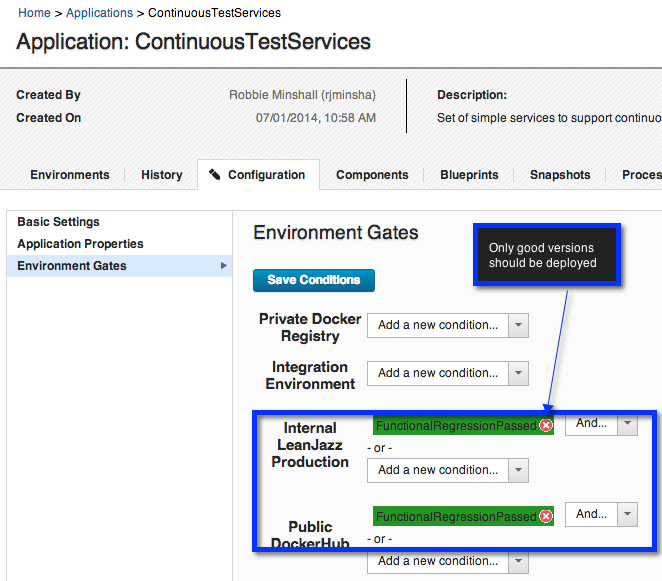
Next I want to setup a gate on environments that we want to ensure only have good versions of the application deployed to.  A gate in UCD filters out versions of a component that can be deployed to an environment based on it's status.  In this case both the environments to the right of the stoplight in the sketch should be limited in this way  (leanJazz production and Public Dockerhub), and we only want to deploy versions that have passed their functional regression testing.  


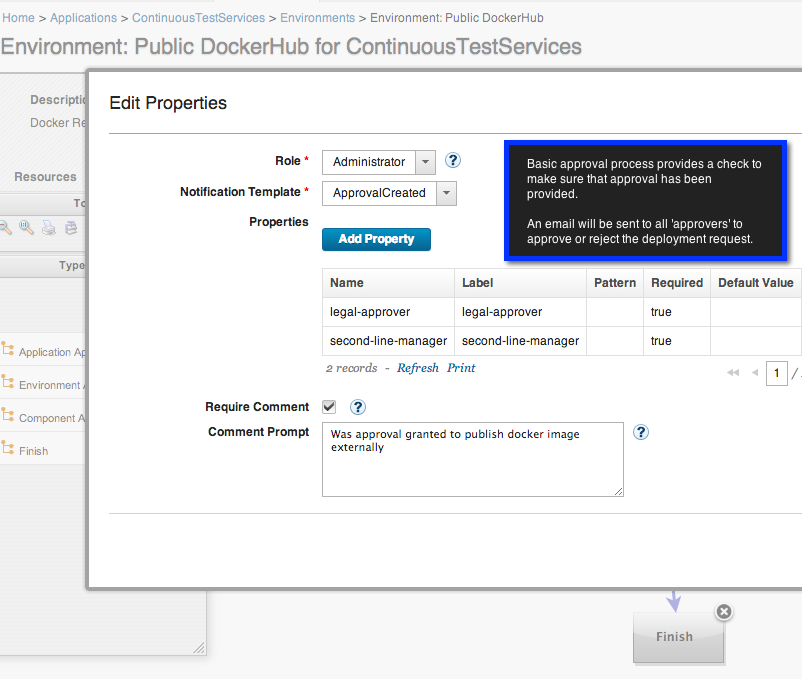
Next I setup an approval process.  I needed a very basic approval process to record consent for versions of the application to be published on hub.docker.com.   When a deployment is requested to the Public DockerHub environment, an email will be sent to a set of 'approvers', they can reject or approve the deployment after recording consent information.  


Next I want to represent the various state a container may be in on a docker host.  In UCD under Settings I created a status to represent the states that a Docker container may have on a resource (Loaded, Running, Hosted).  This will allow us to see the state across multiple environments. 

Now we have setup the layout of environments for my purposes.  Now it is time to setup my processes to build and run docker containers. 

Step 2:  Creating component process to build, test and deploy docker images and containers
 I'll represent each of my micro-services as a component in IBM Urbancode Deploy.  In this case I just have one component, my SimpleTopologyService.  I created a component and then setup the source of my component to be my git repository on IBM DevOps Services. 

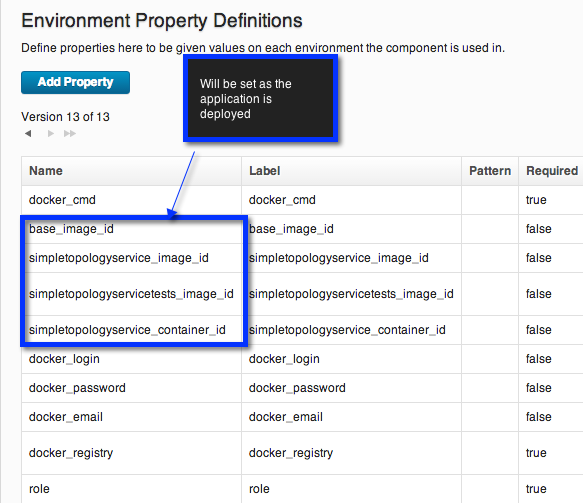
  For each environment there is a set of information about my component that I'll want to know such as the imageID, containerID, running instances and port information.  To start with I just decided to track the imageId and containerID information.  

To keep track of this information I created a set of Component Environment Properties.  These are properties which will have a value on all environments but can differ from one environment to another. 


Now I can create a set of component processes representing actions I will preform on my dockerized application.     

 Each of these processes are fairly simple.  They are common docker commands that developers are (probably) used to executing locally.  Capturing them in a UCD component process allows for us to execute these actions on various environments.  I'll point out a few interesting parts of the component processes.

The build process creates Docker images from Dockerfiles and sets interesting information on the environment properties such as the imageids.

To parse out information from docker we can use post-processing scripts.  Post processing scripts in UCD are run as a part of each step in a process and can be used to determine if a step has executed successfully or to pull out interesting information.   In this case I scanned the imageid and set that value on a property. 


The docker-run process sets environment information about the running container, and changes the inventory status to 'Running' representing that not only is the image loaded but now it is active.


 The test process, takes the mocha tests which have been packaged in a docker container (see Part 1) and then attaches that container to the SimpleTopologyService.  Based on the result of the tests the process will set a status on the component version of either FunctionalRegressionPassed or FunctionalRegressionFailed.  As we saw earlier when setting up the environments this status will be used to ensure that only good versions of the application and containers are deployed to production environments or shared. 


  We can also look at the inventory of the component to get a view on quality and state of versions.


The publish process is used to take a new docker image, and to make that available to others using a docker registry.  To do this we will tag the image using the hostname of the private registry, and then push it to the registry.   If the tests successfully passed then we also push the image using the tag 'tested'.  Now anyone on the team that wants to get the latest version of the application can pull directly from the registry using either:
$docker pull leanjazz.rtp.raleigh.ibm.com:5000/simpletopologyservice:latest
or (or last good image)
$docker pull leanjazz.rtp.raleigh.ibm.com:5000/simpletopologyservice:tested

Step 3:  Creating application processes

 Component processes represent operations that we can do with our docker image and containers.  Application processes represent a higher level of operation that we will execute on our environments.  Application processes are made up with a combination of component processes.  For this exercise I created 4 processes.  

The build_test_publish process takes a new version of the application, builds the docker containers, deploys those containers, then tests the containers and finally pushes the image images to the private repository with :latest and :tested tags as appropriate.


The pull_run process pulls the image from the private docker registry, and then starts the container.

Publish simply pushes a docker image out to a docker registry, in this case we will use it to login and push to the dockerhub. 

Running application processes 

Now I have my application dockerized, I have setup a set of environments for my pipeline, and automated actions using my docker container as IBM Urbancode Deploy processes.  When a commit is made to the GIT repository a new version of the component will be pulled in.  We can then run the appropriate processes on our pipeline.

For example to build and test my containers I will run the build_test_push Application process on my Private Docker Registry.  The result of this will be a new image is available in the registry with the latest application changes, and a status will be set according to the test results. 


To simply deploy a new version of the application in my production or test environment I will run the pull_run Application process.  This will grab the version of the application from the docker private registry and run it as a container. 


When I am ready to share the application with a broader community I can run the publish process on the DockerHub environment, which will generate an approval record and then proceed with pushing the new version of the application/image to my dockerhub registry. 


Conclusions 

Docker is a fantastic technology.  It provides many of the benefits of Virtual Images without the downsides.  The use of docker registries makes it very easy to share versions of the application.  Tagging images allows a simple means for down-stream consumers to get either the latest or last good version of a micro-service. 

The usage of IBM Urbancode Deploy provides a framework to manage multiple docker environments and mange a deployment pipeline for micro-services. This allows us to easily setup and manage a set of environments to support both our development efforts, as well as the testing and development efforts of teams consuming that application.  We can do this on an on-going basis since the cost of pulling a new version of a container and running it is minimal. 

This was a rough experiment to see how these two technologies can be used together.  With some improvements we should be able to make this simple moving forward.   I look forward to making some time in the future to improve theses processes and to see what can be done to make it re-usable.